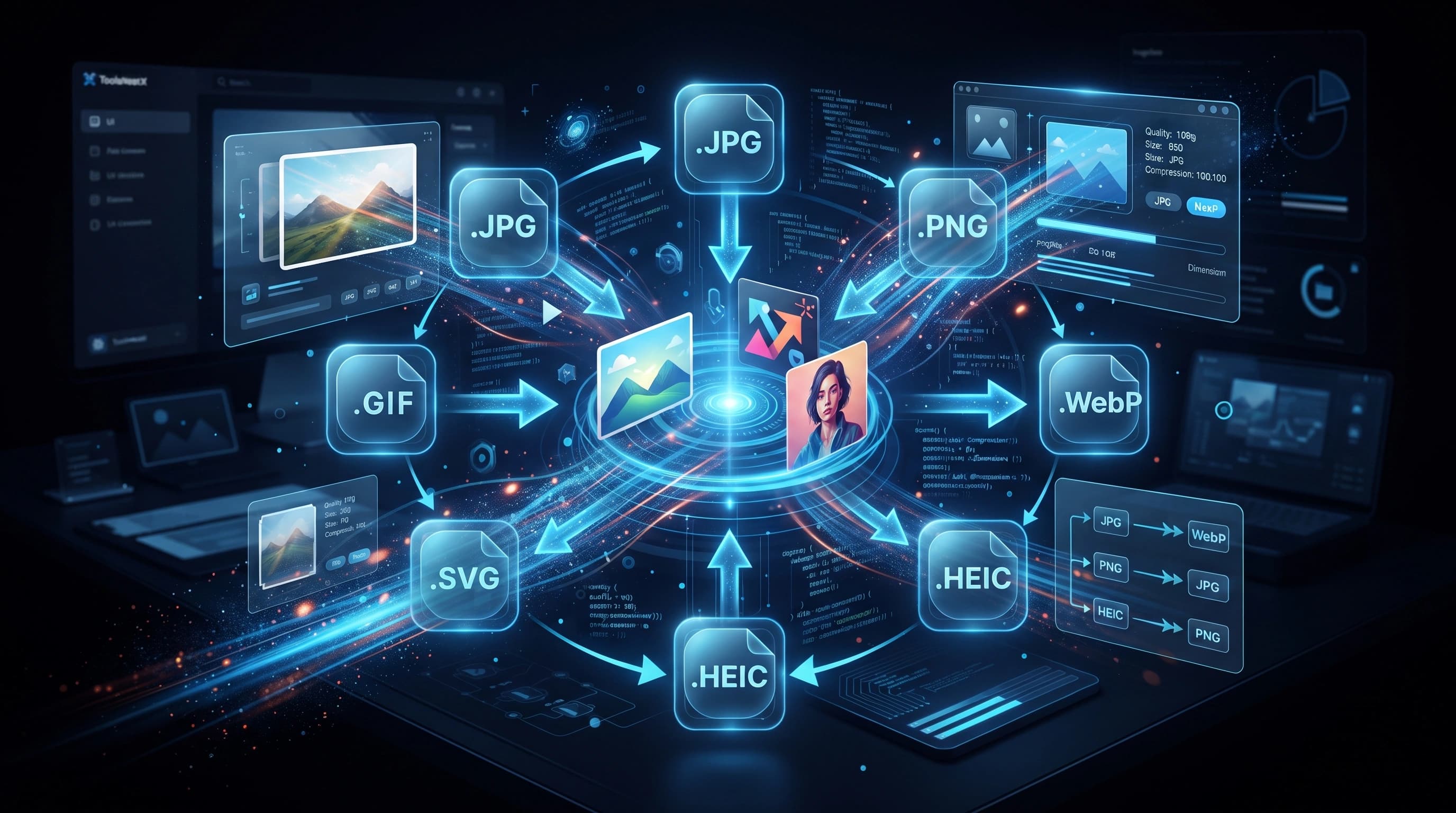
How to Convert Images Online
Every image format was designed to solve a different problem, which is exactly why you end up needing to convert between them so often. A logo exported as a JPG suddenly has a white box around it where the transparency used to be. A photo saved as PNG is five times larger than it needs to be. A designer hands you a WebP file, but the CMS you're uploading to only accepts JPG or PNG. None of these are bugs — they're just format mismatches, and converting is how you fix them.
Why This Comes Up More Than You'd Expect
Format conversion isn't just a one-off task for a specific project — it shows up constantly across ordinary workflows:
- CMS and platform restrictions — a lot of platforms, forms, and upload systems only accept specific formats, so a perfectly good image sometimes just needs a different file extension
- Design handoffs — assets often move between design tools, developers, and marketing teams, and each stage tends to want a different format
- Social media requirements — some platforms compress or reject certain formats, so converting proactively avoids the platform doing it for you (often worse)
- Print vs web use — the format that works well for print production is rarely the right one for a fast-loading web page
- Legacy compatibility — older systems or specific software sometimes simply don't support newer formats like WebP or AVIF
What Actually Changes When You Convert
Converting a JPG to PNG doesn't add detail that wasn't there — since JPG is lossy, whatever compression artifacts already exist in the source stay put, they just now live inside a lossless container. Converting PNG to JPG, on the other hand, does discard some information, since you're moving from lossless to lossy. This is worth knowing because it explains a common confusion: "I converted my JPG to PNG for better quality, but it still looks the same" — that's expected. Conversion changes the container, not the history of what happened to the pixels before you converted it.
The Transparency Problem
This trips up more people than any other part of conversion. PNG and WebP both support an alpha channel, meaning parts of the image can be fully or partially see-through — this is essential for logos, icons, and any graphic meant to sit on top of a colored background. JPG has no concept of transparency at all. So when you convert a transparent PNG to JPG, the transparent areas don't disappear — they get filled in, usually with white or black, which is why logos sometimes come out of a JPG conversion with an ugly box around them. If transparency matters, PNG or WebP are the only real options.
Choosing the Right Output Format
- JPG — best for photographs and anything where small file size matters more than perfect edges or transparency
- PNG — best when you need transparency, or the image has sharp lines and flat colors like logos, screenshots, or illustrations
- WebP — generally the best all-around choice for the web today; it supports transparency like PNG but compresses closer to JPG file sizes, and virtually every modern browser supports it natively
A Few Practical Tips
- Always keep your original file. Converting between lossy formats more than once compounds quality loss each time.
- If you're converting a batch of images for a website, WebP with a JPG fallback is usually the safest combination for both file size and compatibility.
- Check the destination before converting — there's no point converting to a format the platform you're uploading to doesn't even accept.
- If an image has fine text or sharp lines, avoid converting it to JPG, since lossy compression tends to blur sharp edges slightly.
How to Convert Images
- Upload your image file.
- Choose the output format you need — JPG, PNG, or WebP.
- Click Convert.
- Download the converted file and check it renders correctly wherever it's going to be used.
Wrapping Up
Image conversion looks like a simple technical task, but the format you choose actually determines how the image behaves — whether it stays transparent, how sharp it looks, and how much bandwidth it costs to load. Picking the right target format for where the image is actually going saves you from re-doing the conversion later.