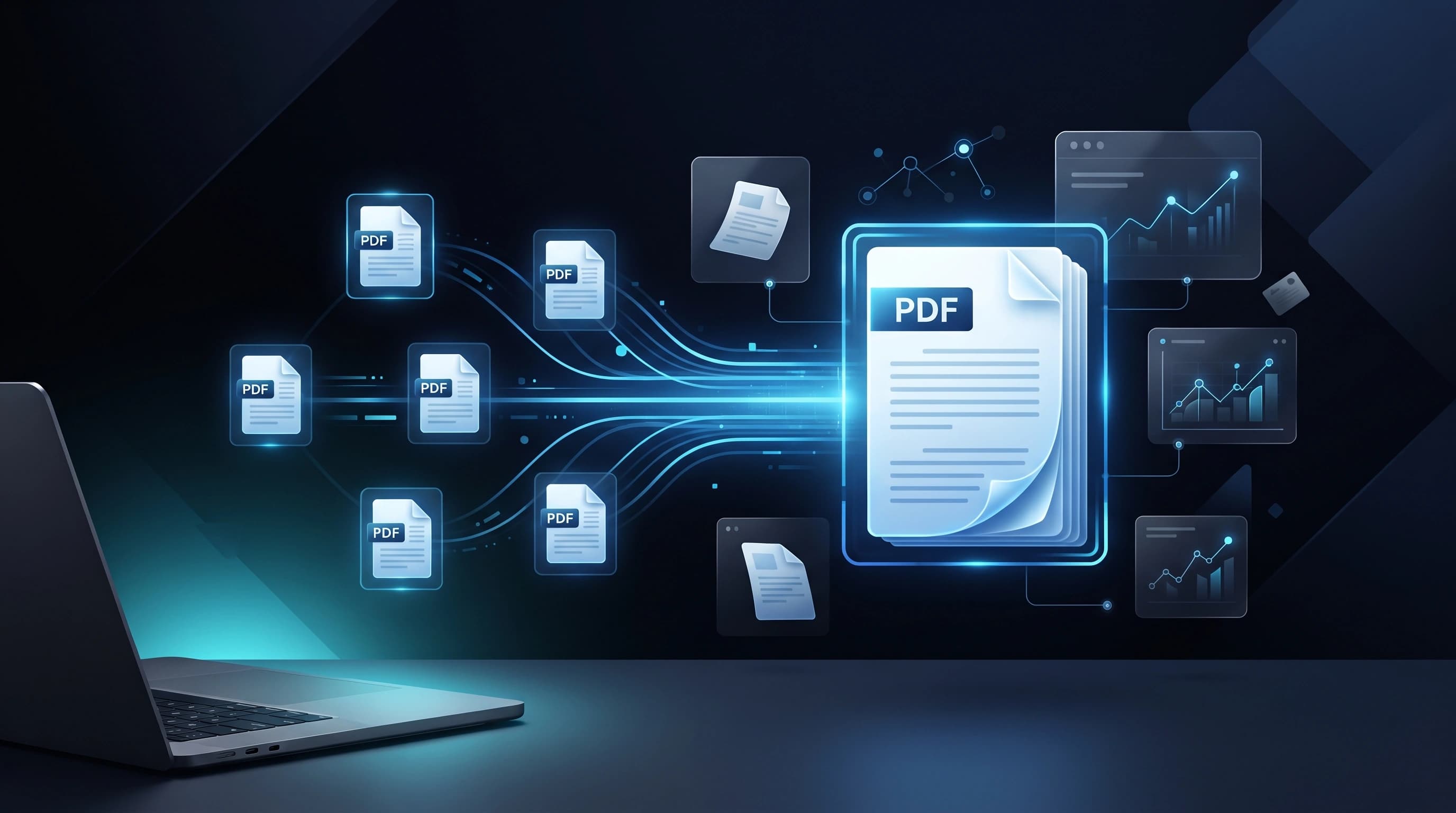
How to Merge PDF Files Online
Anyone who has worked in an office for more than a week has run into this problem: you've got five separate PDFs — a cover letter, three scanned contracts, and an appendix — and you need to send them as one clean file instead of five separate attachments. It's a small annoyance, but it happens constantly, and doing it the wrong way (screenshots pasted into Word, or emailing five files and hoping the recipient opens them in order) usually creates more work than it saves.
Merging PDFs solves this cleanly. Instead of juggling multiple files, you end up with a single document that opens in the right order, keeps its formatting intact, and is far easier to store, share, or print.
Why People Actually Need This
It's easy to assume merging PDFs is a niche need, but it comes up constantly across very different situations:
- Business reporting — combining a cover page, financial tables, and appendices into one submission-ready report
- Job applications — putting a resume, cover letter, and certificates into a single file instead of forcing a recruiter to open five attachments
- Academic work — students frequently need to submit assignments as one file even when the content was written across multiple documents or scanned separately
- Contracts and legal paperwork — signed pages, addendums, and ID scans often need to be combined into a single record for filing
- Scanned documents — if you scan a multi-page form one page at a time, you'll often end up with a folder of individual PDFs that need to become one file
In every one of these cases, the underlying goal is the same: reduce five moving pieces down to one, so nothing gets lost or opened out of order.
What Actually Happens When You Merge PDFs
A common misconception is that merging somehow "converts" or re-processes the files, which raises worries about quality loss. In reality, a proper PDF merge tool doesn't touch the content inside each page at all — it just combines the page structures into a single container file. Text stays selectable, images stay at their original resolution, and formatting doesn't shift. The only thing that changes is that what used to be several files is now one.
This matters especially for scanned contracts or signed documents, where even a slight re-compression could raise questions about whether the document was altered. A clean merge leaves every page exactly as it was.
Getting the Order Right (This Is Where Most Mistakes Happen)
The single most common issue people run into isn't the merging itself — it's ending up with pages in the wrong order. A few habits prevent this:
- Rename your files with a number prefix before uploading (01-cover, 02-contract, 03-appendix) so the natural sort order matches the order you want
- Double-check page count after merging — if a source file had a blank last page, it'll carry over unless you remove it first
- Preview the final document before sending it anywhere important, especially for anything going to a client or an official body
When to Merge vs When to Keep Files Separate
Merging isn't always the right call. If a recipient specifically needs to process each document separately (for example, a hiring system that scans each attachment individually), keeping files apart may actually work better. But for anything meant to be read start-to-finish as one cohesive document — reports, submissions, signed agreements — merging is almost always the cleaner choice.
What Happens to File Size
A question that comes up a lot: does merging make the final file huge? Not really — a merge just stitches the existing page data together, so the combined file size is roughly the sum of the originals, give or take a small amount of overhead for the container structure. If you're merging several already-large scanned documents and the final file feels too heavy for email, it's worth compressing the PDF afterward rather than before, since compressing first and merging second can sometimes introduce visible quality differences between pages that were compressed at different times.
Security Considerations
If the documents you're combining contain anything sensitive — signed contracts, ID scans, financial statements — it's worth being a little careful about which tool you use. A trustworthy PDF merger processes files in your browser or deletes them from its servers shortly after the merge completes, rather than storing them indefinitely. It's a good habit to avoid uploading anything you wouldn't want sitting on someone else's server long-term, and to double check that the tool you're using is explicit about not retaining your files.
How to Merge PDF Files
- Upload the PDF files you want to combine.
- Drag and drop to arrange them in the order you want the final document to read.
- Click Merge.
- Download the combined file and do a quick scroll-through before sending it anywhere.
Wrapping Up
Merging PDFs is one of those small, unglamorous tasks that quietly saves a lot of back-and-forth once you build the habit. A single well-ordered file is easier to open, easier to search, and far less likely to get lost in an inbox than five separate attachments — and doing it properly takes less than a minute once you know what to watch out for.