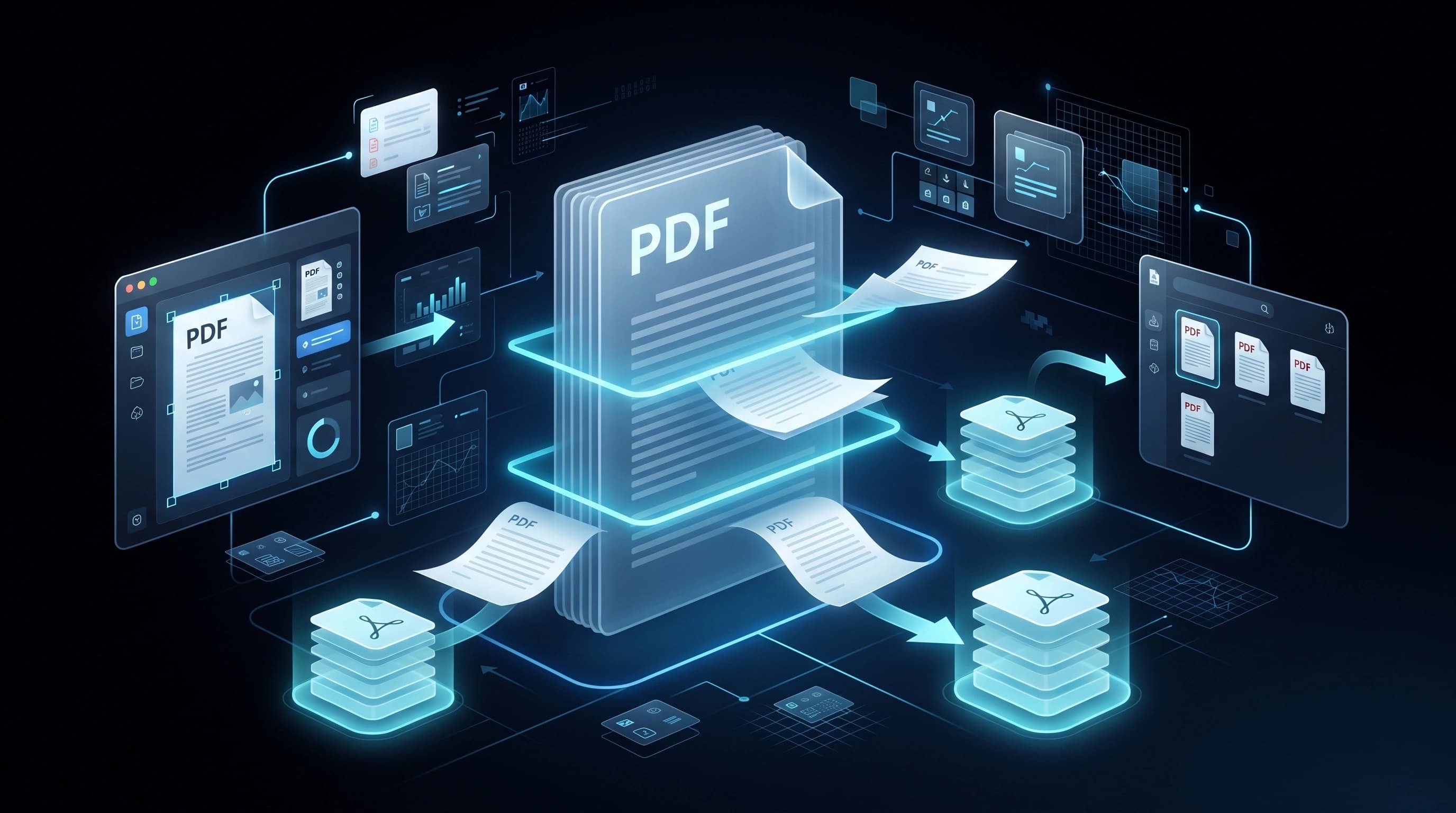
How to Split PDF Files Online
At some point, almost everyone ends up with a PDF that's too big for what they actually need. Maybe it's a 40-page contract and you only need to send someone pages 12 through 15. Maybe it's a scanned book and you want just one chapter. Maybe your email keeps rejecting a report because the whole file is too heavy to attach. Splitting solves all of these — instead of forcing the recipient to dig through a huge document, you hand them exactly the pages that matter.
It's essentially the mirror image of merging: where merging takes several files and makes one, splitting takes one file and breaks it into the pieces you actually need.
Why This Comes Up So Often
A few situations where splitting a PDF saves real time:
- Sharing sensitive sections only — sending just the signature page of a contract instead of the entire document, so the recipient doesn't need access to unrelated clauses
- Email size limits — most providers cap attachments around 20-25MB, and a scanned 100-page document can easily exceed that; splitting it into smaller chunks gets around the limit without needing a file-sharing link
- Extracting a chapter or section — pulling out one relevant section from a long report or textbook instead of forcing someone to scroll through the whole thing
- Removing pages you don't need — cover pages, blank pages, or irrelevant appendices that were scanned along with everything else
- Reorganizing a document — splitting a file apart so the pages can be reordered or redistributed into different documents entirely
Two Different Ways to Split
Not all "splitting" means the same thing, and it's worth knowing the difference before you start:
Extracting specific pages pulls out only the pages you select — for example, pages 3, 7, and 8 — into a new, smaller PDF. This is what you want when you need just a portion of a larger document.
Splitting into equal parts breaks a large document into several smaller files of roughly equal size, which is more useful when the goal is purely to make an oversized file manageable rather than to isolate specific content.
Most online splitters support both, but it's easy to accidentally use the wrong one — extracting when you meant to split evenly, or vice versa — so it's worth checking the output before sending it anywhere.
Does Splitting Affect Quality?
No, and this is a common worry for no real reason. Splitting a PDF doesn't re-render or re-compress anything — it just separates the existing page data into new files. Text stays selectable, images stay at their original resolution, and nothing about the visual quality changes. The only thing that changes is how many separate files the content is spread across.
A Few Habits Worth Building
- Always keep the original, unsplit file somewhere safe in case you need the full document again later
- Double-check the page numbers before extracting — PDF viewers sometimes display a cover page as "page 0" or offset the numbering, which can throw off your selection by one page
- Name the output files clearly, especially if you're splitting a long document into many parts (contract-pages-1-5.pdf is far more useful later than document-1.pdf)
- If you're extracting a page that contains a signature or sensitive personal data, double check you haven't also swept up an adjacent page by mistake
When You Might Want to Merge Instead
If you find yourself splitting a document just to remove a couple of unwanted pages and then wanting to send the rest back together, it's often faster to extract the pages you want to keep and merge them straight into a new file, rather than splitting the whole thing into individual pages first. The two tools are meant to work together depending on what you're actually trying to end up with.
How to Split PDF Files
- Upload your PDF document.
- Choose whether to extract specific pages or split into equal sections.
- Select the exact pages, if extracting.
- Click Split and download the resulting file or files.
Wrapping Up
Splitting a PDF is a small operation that solves a genuinely common problem — getting the right pages to the right person without forcing them to wade through content they don't need. Once you know the difference between extracting and splitting evenly, it takes seconds to get exactly the file you were after.